 Skip to content Skip to content


Last Updated: March 15, 2026
Get your phone back in top shape with the official Blackview Shark 8 firmware. We’ve gathered everything you need, including the latest USB Drivers, the essential Flash Tool, and the specific Blackview Shark 8 flash file, to help you fix any software glitches.
Blackview Shark 8 Firmware (Flash File) – Drivers, Tools & Guide
Here, you’ll find the official firmware for your Blackview Shark 8 smartphone. We’re also including the necessary SP Flash Tool and MediaTek USB drivers to make the flashing process smooth. All files are neatly packed in ZIP archives, ready for you to extract using WinRAR or 7-Zip on your computer. Just make sure your extracted firmware package has that crucial scatter file it’s a must for flashing.
Before you jump into flashing, it’s a good idea to double-check that your downloaded ZIP files aren’t corrupted and that they’re the right ones for your specific Shark 8 model. You’ll need a Windows computer and a reliable USB cable to connect your phone. Oh, and it’s always wise to give your computer a quick malware scan before starting. We’ve also included a straightforward “How to Flash” guide to walk you through the steps.
Updating your Blackview device with the official stock firmware can fix a whole host of software problems. Think FRP lock issues, apps misbehaving, a sluggish phone, a forgotten pattern lock, or even if your phone is stuck on the Blackview logo or won’t boot past it. It can also sort out connectivity problems with Wi-Fi and Bluetooth, fix battery drain, or recover your phone from a soft brick state.
FRP Bypass Tools for Your Blackview Shark 8
Sometimes, after flashing or doing a factory reset, you might run into a Google account lock, also known as FRP. If that happens, don’t worry. Our free Android apps launcher tools are here to help you regain access to your phone. Watch the video below use our tool.
Why Do We Need Blackview Shark 8 Firmware?
Having the right firmware for your Blackview Shark 8 is pretty important. It’s the software that keeps your phone running smoothly and can resolve those annoying issues that pop up. Here’s why it matters:
- It can help unlock your device if it’s been locked by an account.
- It lets you update your phone to the latest Android system version.
- It fixes common problems like your phone getting stuck in a startup loop, lagging, or freezing unexpectedly.
- It resolves issues that might occur with Over-The-Air (OTA) updates and can help if your battery seems to drain too quickly.
- It allows you to restore the original software, known as the stock ROM, which can be important for keeping your warranty intact.
- It’s a lifesaver if your phone only seems to boot into recovery mode and won’t start normally.
Basically, applying this official update can make your device perform much better and be more dependable. If you’re curious to learn more about stock ROMs, you can check out this article about stock ROM benefits.
Choosing the Right Firmware Version
Before you start the flashing process, it’s crucial to make sure you’re using the correct firmware. Follow these steps to pick the right one:
- Check Your Device Model: First things first, go to your phone’s “About Phone” settings and confirm that your model is indeed the Blackview Shark 8.
- Verify the Build Number: Look for any specific identifiers like “Shark 8” within your device’s build details. This helps confirm you have the right software.
- Confirm the Chipset: According to the official Blackview specs, the Shark 8 is powered by the Mediatek Helio G99 (6 nm) chipset. This is an Octa-core processor featuring (2×2.2 GHz Cortex-A76 & 6×2.0 GHz Cortex-A55) cores, and it uses a Mali-G57 MC2 GPU. Knowing this helps ensure compatibility.
- Match the Firmware Version: Double-check that the firmware version and regional details you’ve found match your phone’s exact specifications. This prevents any potential compatibility headaches down the line.
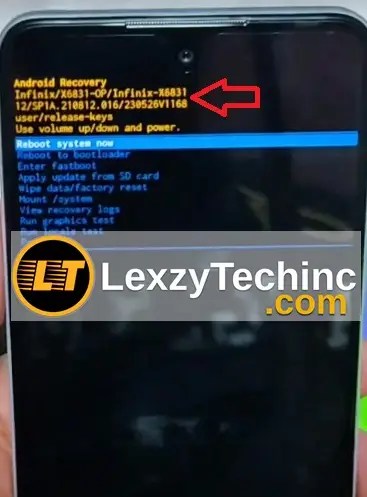
- If you’re not totally sure about your chipset or the current firmware version, you can try restarting your device into recovery mode. Sometimes, you can find more detailed device information there.

This way, you’ll be much more confident about which firmware to flash and which version will work best, helping you avoid any risks.
Firmware Details for Blackview Shark 8
Here’s a quick rundown of the official firmware details for your device:
| Firmware Information | Details |
|---|---|
| Device Model | Blackview Shark 8 |
| Firmware Version | V1.0, V01 |
| File Size | 2.97 GB, 3.0 GB |
| Android Version | Android 13, Doke OS 4.0 |
| Platform | Mediatek Helio G99 (6 nm) CPU Octa-core (2×2.2 GHz Cortex-A76 & 6×2.0 GHz Cortex-A55) GPU Mali-G57 MC2 |
| Release Date | Released 2023, November |
| Region | Global, Africa and Asia |
| File Type | ZIP (Includes Scatter File [MT6xxx_Android_scatter.txt], Preloader.bin, boot.img, system.img, recovery.img, lk.bin, logo.bin, and more) Flash Tool: SP Flash Tool |
Download Blackview Shark 8 Firmware
You can download the official stock firmware for your Blackview Shark 8 using the links provided below:
| Software Details | Download Link | Members Link |
|---|---|---|
| File Name: SHARK8_NEU_M9905A_V1.0_20231114V01 .zip Size: 2.97 GB | Download Link | Download Link2 |
| File Name: Blackview_Shark_8_MT6789_Non-EU_V01_231114_MXML.zip Size: 3.0 GB | Download Link | Download Link2 |
Just a friendly reminder to make sure the firmware version you choose is fully compatible with your specific device model and regional settings.
Prerequisites
Before you dive into the flashing process, please make sure you have these items ready:
- Backup Your IMEI Numbers: It’s really important to write down and save your Blackview Shark 8’s IMEI numbers before you start flashing.
- Remove Your Google Accounts: Log out of all Google accounts on your phone. This helps prevent any FRP lock issues after the firmware update.
- Back Up Your Data: Don’t forget to create a backup of all your important information – accounts, music, videos, photos, everything. Flashing will wipe your device clean.
- Fully Charged Device: Ensure your phone has at least 50% battery life. We don’t want it dying mid-flash.
- USB Cable & PC: You’ll need a reliable USB cable and a computer with working USB ports.
- Necessary Drivers: Download and install these drivers on your computer:
- Data Backup: I can’t stress this enough – always back up your important data. It’s the best way to prevent any loss during the flashing process.
How to Install Firmware on Blackview Shark 8
You’ll be flashing using the SP Flash Tool, which works with the secure boot Download Agent (DA) for SLA/DAA devices. If you happen to not find the Secure Boot Download Agent (DA) file for this particular model, you might consider using the MTK Client for flashing. Here are the step-by-step instructions using the MediaTek (MTK) SP Flash Tool:
- Download and Extract:
- First, download the firmware package that’s right for your device.
- Then, extract the contents of the ZIP file into a dedicated folder on your computer.
- Install the Required Drivers:
- Make sure both the VCOM Drivers and the Blackview USB Drivers are properly installed on your PC.
- Launch the SP Flash Tool on your computer. If you don’t have it yet, you can download the latest version of SP Flash Tool for Windows or SP Flash Tool for Linux. For a more detailed walkthrough, you can also find a complete step-by-step SP Flash Tool flashing guide.
- Load the Scatter File:
- Click on the “Scatter-loading” button. Navigate to the folder where you extracted the firmware and select the “scatter.txt” file.
- Connect Your Device:
- Turn off your phone completely.
- Connect your device to your PC using the USB cable. The SP Flash Tool should recognize your device automatically.
- Start Flashing:
- Click the “Download” button to begin the flashing process.
- It’s important not to disconnect your device at any point until the process is fully finished.
- Wait and Reboot:
- Once the flashing process shows as complete, you can disconnect your device.
- Now, power on your device. It should boot up into the new firmware.
Missing IMEI or Corrupt Baseband After Flashing?
If you find yourself with missing IMEI numbers or a corrupt baseband after flashing, don’t panic. Just follow these steps:
- Check Your Drivers: Make sure you have the Mediatek CDC Driver and other MediaTek (MTK) drivers installed correctly. Sometimes, a simple driver issue can cause these problems.
- Use an IMEI Repair Tool: There are tools designed to help with this. Programs like SN Write Tool or Maui Meta for MediaTek can help restore your original IMEI. You can find more details on how to use the Write Tool or Maui Meta on YouTube.
- Run the Repair Tool:
- Connect your device to your computer.
- Carefully enter your original IMEI numbers for both SIM slots.
- Click “Start” to begin the repair process.
- Restart Your Device: Once the tool finishes its work, reboot your phone. You can then check if your IMEI is back by dialing *#06#.
Video Guide: How to use Maui META to repair IMEI
Credits: https://www.youtube.com/@mhgsmclinic
Common Issues and Solutions
- Device Not Recognized by PC:
- First, double-check that all the necessary drivers are installed correctly.
- If that doesn’t work, try using a different USB cable or a different USB port on your computer.
- Boot Loop After Flashing:
- If your device gets stuck in a boot loop after flashing, try booting into recovery mode and performing a factory reset. This often clears up the issue.
- Flashing Errors:
- When you encounter flashing errors, take a moment to confirm that you’ve selected the correct scatter file and that the firmware version matches your device model precisely.
Frequently Asked Questions (FAQs)
Q1: Will flashing the firmware erase my data?
A: Yes, flashing the firmware will reset your device to its factory settings. It’s really important to back up all your important data before you begin.
Q2: Is this firmware compatible with other Blackview models?
A: No, this Blackview Shark 8 firmware is specifically designed for this model only. Using it on any other Blackview device could cause serious problems.
Q3: Can I downgrade my firmware version?
A: Downgrading your firmware version is generally not recommended. It can lead to potential security vulnerabilities and compatibility issues down the line.
Q4: What should I do if I encounter an FRP lock after flashing?
A: If you run into an FRP lock issue, our free Android apps launcher tools can help you resolve any Google account lock problems quickly and easily.
Q5: Are custom ROM options available for the Blackview Shark 8?
A: This guide is focused on providing the official stock firmware for your device. For custom ROMs, you might want to check our Custom ROMs page, or explore trusted tech forums like XDA Developers. You might also find useful information on sites like Beebom.
Conclusion
By carefully following this guide, you should be able to flash the official stock firmware onto your Blackview Shark 8. This process will help restore its optimal performance, improve stability, and enhance security. If you run into any difficulties or have more questions, please feel free to leave a comment below or reach out to our support team.
To stay in the loop with the latest firmware updates and tech tips, consider subscribing to our newsletter or following us on social media.
Disclaimer: Please be aware that flashing stock firmware is done at your own risk. It’s crucial to follow the provided instructions precisely to prevent any potential damage to your device.

